
Explore translation features
Reuse the terminology you choose across your reading
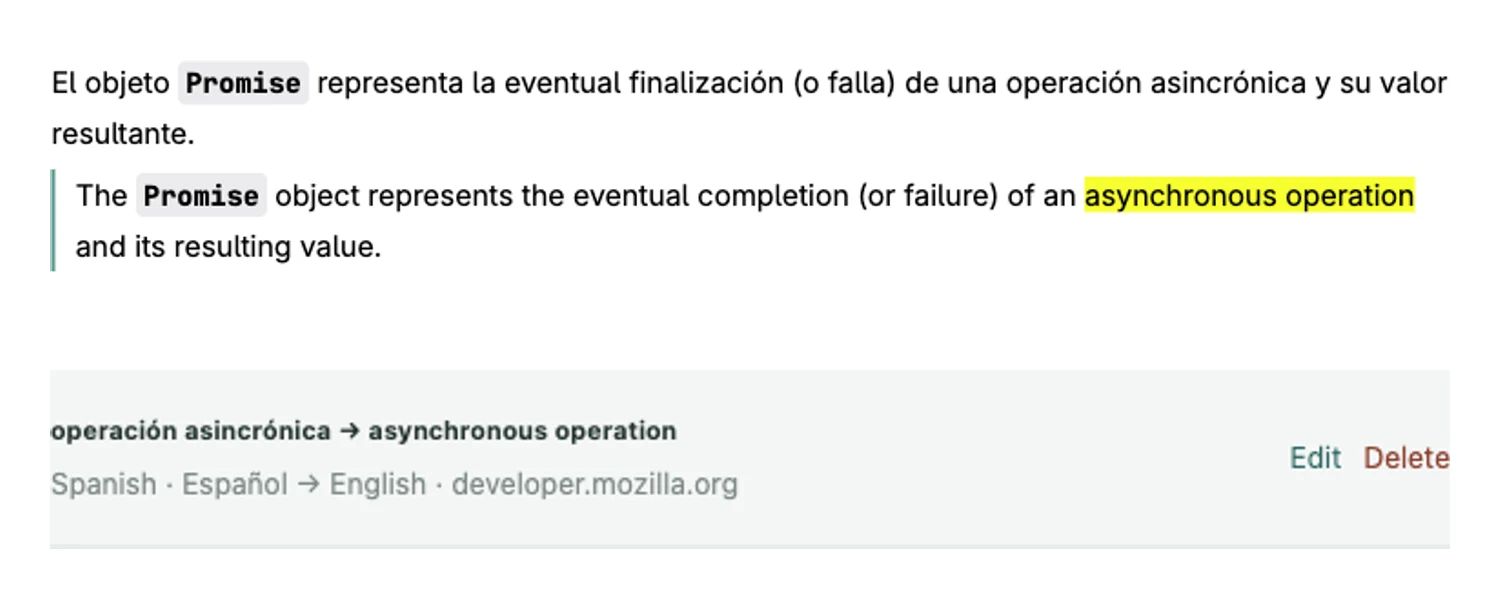
Keep a project name, technical term or preferred translation consistent as you move between articles and documents. Your glossary supplies matching terminology to translation requests.
A free usage allowance is available. Translation requires sign-in and internet access; usage limits apply.
How to use it
- Open the glossary in Precise Translate and add a source term with its preferred translation.
- Use a specific term whose intended meaning is clear in your material.
- Translate a passage that contains the term and check how it was applied.
- Edit or remove entries as your terminology changes; export a copy when you need to keep a backup.
Start with a small, precise vocabulary
Begin with product names, abbreviations and expressions that recur in your reading. Overly broad terms can affect unrelated sentences. Check a representative passage after changing an entry and revise the glossary if the preferred wording does not fit.
Use terminology alongside context
A glossary is a translation aid, not a guarantee that every generated sentence is correct. Context and grammar still matter. Compare the result with the original and use selection explanations when a specialist concept remains unclear.
Local storage and matching entries
Glossary entries are stored in the current browser and are not cloud-synced. Matching terms needed for a translation may be sent to the service with the text. Exported copies remain your responsibility. Clearing local entries does not remove a file you previously exported.
A free usage allowance is available. Translation requires sign-in and internet access; usage limits apply.