
Explore translation features
Read text-based PDFs with the original beside the translation
Use the file workbench to read a research paper, manual or course document with its original PDF still available for comparison. Start with one page before committing to a long document.
A free usage allowance is available. Translation requires sign-in and internet access; usage limits apply.
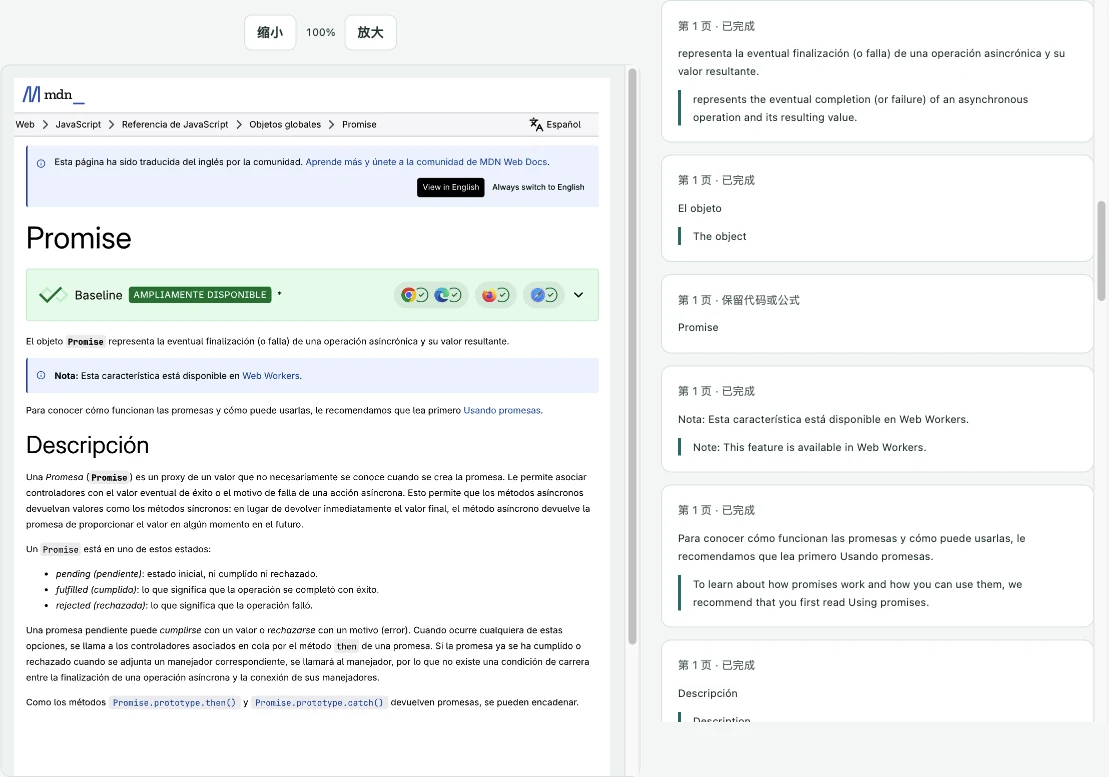
How to use it
- Install Precise Translate, sign in and open the file workbench.
- Import a text-based PDF of at most 50 MiB and select the target language.
- Translate the current page first. Compare extracted text with the original, especially in columns and tables.
- Continue with more pages or the full document. Pause and resume the task when needed, then export bilingual text.
Check whether the PDF contains text
Try selecting a sentence in a PDF viewer. If the page is only a scanned image, this feature cannot recognize its text: OCR is not included. Even selectable PDFs can contain broken character mappings or unusual reading order. Verify a representative page before translating the rest.
Keep the layout as a reference
The original PDF is a reference alongside the translated text. Multi-column papers, tables, formulas, headers and footnotes can produce an imperfect extraction order. Use the original to check these passages. Bilingual text export does not recreate a translated PDF with the original layout.
Files, account and processing
The PDF is parsed locally; the original file is not uploaded. Extracted text needed for translation is sent to the Precise Translate service. File tasks and completed translations remain in your browser until you remove them. Translation requires sign-in, internet access and available allowance.
A free usage allowance is available. Translation requires sign-in and internet access; usage limits apply.