Translation guides
Follow Coursera lessons with bilingual captions
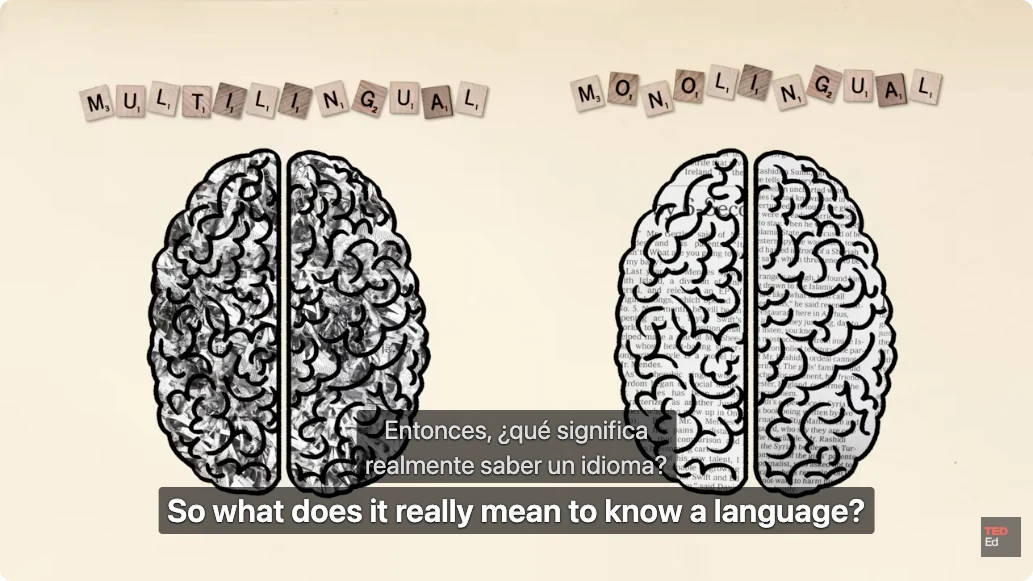
For lessons with accessible text captions, bilingual subtitles can help you compare a lecturer’s original wording with a translation. Your normal course access and a working caption track are still required.
A free usage allowance is available. Translation requires sign-in and internet access; usage limits apply.
How to use it
- Sign in to Coursera with your normal course access and open a lesson video.
- Confirm that the lesson provides text captions and that the video plays normally.
- Install and sign in to Precise Translate, choose a target language and start subtitle translation using its video controls.
- Pause at unfamiliar terminology, compare the original caption and keep useful terms in the glossary.
Check the lesson, not only the course title
Caption availability can vary between lessons, languages and accounts. Confirm the actual lesson provides a readable track before expecting translation. The extension does not unlock paid courses or bypass access restrictions.
If subtitles are unavailable
Try selecting an available caption language in the course player and reopening the lesson. If the platform does not expose a retrievable text track, translation may not be possible. You may import an existing SRT or VTT file you are allowed to use; the extension does not transcribe the lesson’s audio.
Review concepts after watching
Use bilingual captions to identify the exact term the lecturer used, then check the course notes and original definitions. AI translations can misinterpret specialized vocabulary. Store a preferred glossary translation only after confirming its meaning in this course.
A free usage allowance is available. Translation requires sign-in and internet access; usage limits apply.